


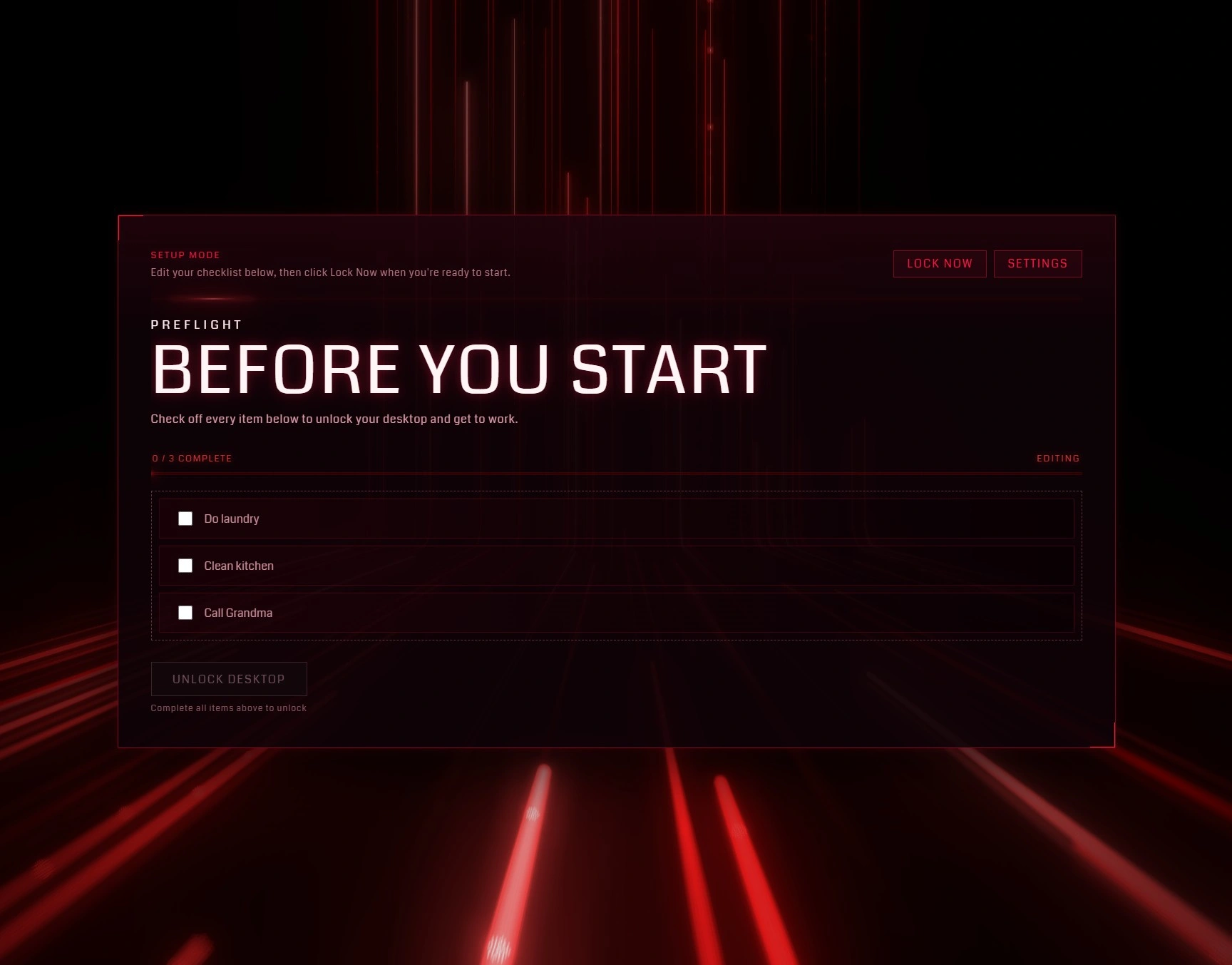
PreFlight is a Windows desktop checklist app that blocks your screen until you finish a short list of daily tasks. It’s intentionally a blunt instrument — there are no nudges, no streaks, no productivity analytics. It just refuses to get out of the way until you’re done.
Why it exists
I kept sitting down at my computer and losing an hour to Slack, email, or YouTube instead of doing the things I’d already decided mattered. Most productivity tools ask for your cooperation. PreFlight doesn’t. The question it answers is: what if the machine didn’t let you skip?
The list is local-only. No accounts, no sync. A checklist gate shouldn’t become another service to maintain, and it definitely shouldn’t need a network connection before it can block the thing it’s supposed to block.
The hard part
Making the gate strict without making the app miserable. If the settings UI is cramped, the checklist is hard to read, or the window sizing is off, the app becomes one more irritation rather than a useful constraint. The tricky details are in the desktop shell interactions — multi-monitor behavior, startup timing, how hard the block actually is.
Stack
The app uses Electron, React, TypeScript, Vite, and Three.js. Packaging runs through electron-builder. The Three.js layer is purely visual — it makes the lock screen feel more intentional, while the actual product behavior stays in checklist state and window handling.
Where it stands
The current version works for my use case. If I rebuilt it I’d spend more time on Windows edge cases earlier: multi-monitor behavior, startup timing, and how hard the block should actually be when someone really wants to ignore it.